
MelBet App
The MelBet app has different access routes depending on your device: an operator-provided APK for Android and, where available, an App Store listing for iPhone or iPad. The mobile website requires no installation. This guide covers published Android specifications, installation, updating and practical checks when access fails. Availability depends on your country and the operator’s restrictions.
App Specifications
The Android figures below come from a MelBet guidebook listing checked on 4/11/2026. They were not verified against a live installer, so a current download or installed build may differ. The listed APK size is the download file size, not the amount of storage needed to install and run the app.
| Android specification | Published detail |
|---|---|
| Android version | v258.0.5 |
| APK size | 41.4 MB |
| Minimum OS | Android 5.0; Android 6.0 recommended |
| RAM | 1 GB minimum; 2 GB recommended |
| Storage | Approximately 100 MB minimum; approximately 150 MB recommended |
| Languages | Guidebook lists 71 app languages, including English, Hindi and Bengali; the count was not tested |
| Source-check date | 4/11/2026 |
Device specifications and access routes answer different questions. Meeting an Android requirement does not establish that the operator will offer access in a particular country. Likewise, an iPhone user should check the actual App Store listing rather than apply Android figures to iOS.
| Access option | Installation route | Availability |
|---|---|---|
| Android APK | Download the APK through the operator’s mobile download route | APK route is described for Android; access remains subject to country and operator restrictions |
| Native iOS app | Follow the operator-provided App Store listing | Regional availability depends on the actual listing and operator restrictions |
| Mobile browser | Open the operator’s website in a phone or tablet browser; no app installation required | Browser access is offered on desktop and mobile, subject to country and operator restrictions |
Download and Install the Android APK
The MelBet Android app is offered through an operator APK route. Unlike a store installation, this process may require you to permit the browser that downloaded the file to install it. Finding the download, installing the package and opening the app are separate stages: a problem at one stage calls for a different check from a login problem after launch.
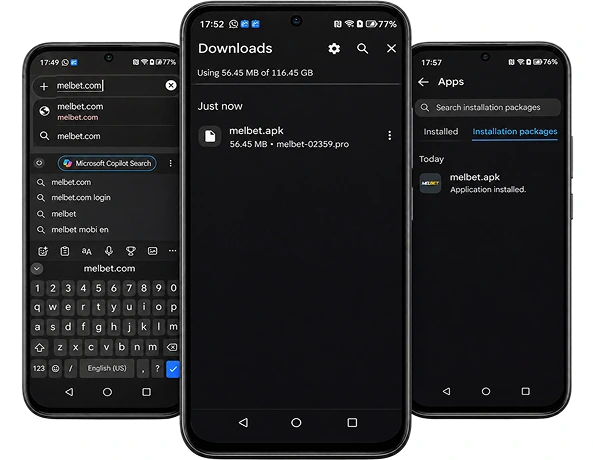
Finding the Operator Download
- Open the MelBet operator website in the Android browser you intend to use for the download. Find its mobile or Android download route rather than searching for an APK on an unrelated mirror.
- Check that the download is reached from the operator’s route before accepting the file. If the route is not available to you, do not substitute an unfamiliar APK source.
- Let the download finish before opening the file. If it stops or fails, check your connection and available device space first.
A downloaded APK is not yet an installed app. If you already have MelBet installed, check the displayed update route before treating another download as an update.
Installation Permission and First Launch
- Open the completed APK download. If Android asks for permission to install from this source, grant it only to the browser used to download the file-not broadly to other apps. Android’s wording and settings path can vary by device.
- Review the installation request, then proceed if it matches the file you chose from the operator route. Once installation finishes, revoke that browser’s installation permission.
- Launch the app and check that it opens before attempting to sign in. A successful installation does not, by itself, confirm that your account or the available products can be accessed from your location.
If Android rejects the package, revisit compatibility, file completion and storage before downloading again. Do not change an account country or use a workaround to bypass an access restriction.
MelBet on iPhone and iPad
An Android APK cannot be installed on iOS. For an iPhone or iPad, the choices are an operator-linked App Store listing where one is available, or the mobile website in a browser. Neither route should be assumed available to every international reader: account access and products can vary by country and operator restrictions.
App Store Availability
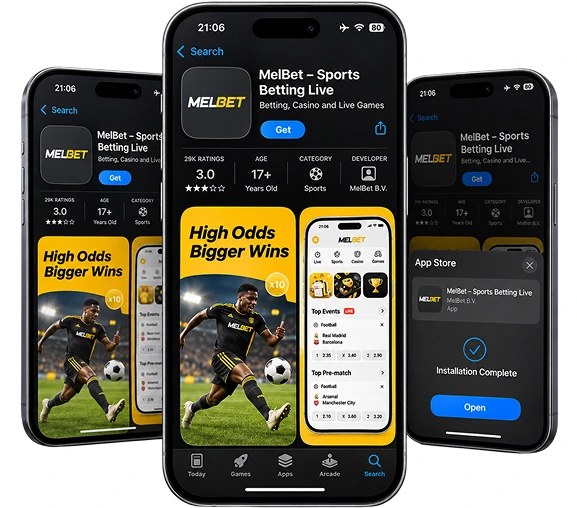
MelBet operator mobile pages describe a native iOS route, but the actual App Store listing determines whether it is available to you and which build it offers. Start with the operator-provided listing, then review what the App Store displays before installing. A search result or a similarly named app is not a substitute for checking that route.
The guidebook listed iOS version 258.0 when checked on 4/11/2026; that is not a verified current App Store version. The available iOS requirements conflict between the guide and regional mobile pages, so use the requirements displayed on the listing for your device rather than the Android specification table. For an existing iOS installation, follow any update prompt displayed through its App Store route.
Mobile Browser Access
To use the mobile website, open the operator’s site in a browser on your phone or tablet. There is no APK to download and no app installation permission to grant. You can check the accessible site and sign in through its normal account route without installing a native app.
Browser access is useful if you prefer not to install software, but it does not override country or account restrictions. If a page will not load, distinguish a connection problem from a message saying that access is unavailable. Installing an app is not a reliable fix for a restriction shown on the website.
Registration, Login and App Features
Installing the app and accessing an account are separate tasks. A new user needs to follow the registration process presented in the available app or website; an existing user should use the login route for their account. Review the information displayed before submitting registration details, and keep account credentials out of messages or unofficial download pages.
The operator site also has a PROMO area. If the registration form accepts MBPK, review the offer displayed for your account before using the promo code. Check any promotion there on its own terms rather than assuming an app installation carries an offer.
Account Access and Language Settings
- After opening the app, choose the route that matches your task: register if you need an account, or sign in if you already have one.
- Enter your own account credentials on the login screen. If you cannot remember them, use the recovery option presented there instead of repeatedly guessing.
- Once signed in, inspect the available account or app settings for a language option. Choose from the options your installed build actually displays.
The guidebook’s list of app languages is a published listing, not a test of the settings on every device. A language offered for one part of the service should not be assumed to appear in every interface or product area. If the app opens but a particular account page does not, check whether the same account can reach the relevant page through the mobile website.
Sports, Casino and Bet History
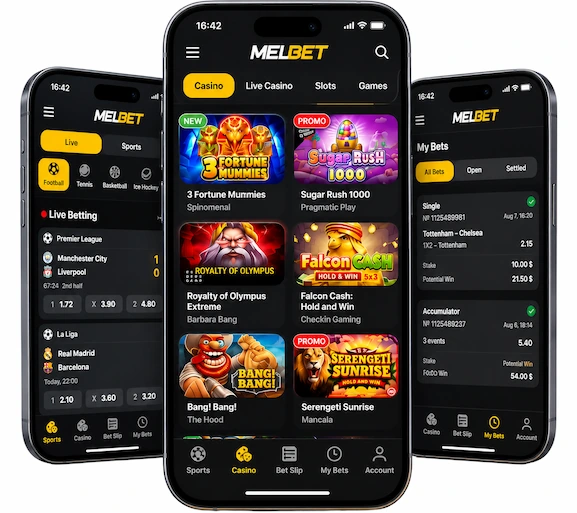
MelBet’s English-language site showed Sports, Live and Esports, with football and cricket in its navigation, on 4/11/2026. Casino, Live Casino and Fast Games were also visible on that date. These are distinct product areas; their availability to an account may vary.
The app guide describes pre-match and live sports, esports, casino, live casino and Fast Games, alongside live streams, bet history and notifications. After signing in, use the navigation available in your build to find the relevant area. Bet history is where to check previously placed bets; it is not the same as a live event screen or a list of available markets.
If a stream, notification or category is not shown, do not assume it is hidden in a particular menu. App build, account access and location can affect what appears. Check the options displayed to you rather than treating a feature list as a promise of access.
Updating the App
Use the route appropriate to your installation. For Android, follow the operator APK route and any update prompt displayed for that app. For an iPhone or iPad, check the operator-linked App Store listing where available and follow its displayed update process. Avoid an unrelated site offering a purported “new version.”
Before updating, make sure the download can finish and that the device has space for installation. You may need to sign in afterward; enter credentials only through the appropriate account screen. There is no guaranteed update duration: the connection, file delivery and device installation process can all affect how long it takes.
Checking Your Installed Version
On Android or iOS, look for version information in the app’s available settings or in the device’s installed-app details. The location depends on the device and build. Record the version shown on your device before deciding whether an offered update applies.
For comparison, the guidebook listed Android v258.0.5 and iOS 258.0 on 4/11/2026. Those dated listings were not checked against a live Android installer or App Store listing. If your installed version differs, use the version and update information shown by the relevant operator route or store listing rather than assuming the guide number is the newest build.
Installation and Login Problems
Start by identifying when the failure occurs. A file that never finishes downloading, an APK that Android refuses to install, an app that will not launch and an account that cannot sign in are four different problems. Work through the relevant checks instead of repeatedly reinstalling; reinstalling will not correct forgotten credentials or a connection restriction.
Compatibility, Storage and Download Errors
For Android, the guide lists a minimum of Android 5.0, 1 GB RAM, approximately 100 MB storage and a 1.2 GHz CPU. Its recommended figures are Android 6.0, 2 GB RAM, approximately 150 MB storage and a 1.5 GHz CPU. These are guide values, not a guarantee that every device meeting them will install or run a particular download.
The guide-listed APK is 41.4 MB as checked on 4/11/2026, and the current file may differ. Do not treat 41.4 MB as the required free storage: installation needs space beyond the downloaded file. Check free space if a download completes but installation stops.
If the download itself fails, confirm that the connection works in the browser, that the operator route remains accessible to you and that the file has fully downloaded before opening it. If Android rejects a complete file, check the device’s OS and the permission for the browser that downloaded it. Revoke that permission after installation.
Account Recovery and Connection Issues
If the app launches but login fails, check the credentials you entered and use the recovery route displayed by the operator if needed. Recovery is different from registering a new account: creating another account is not a substitute for regaining access to an existing one. Do not share a password or recovery code with a download site.
If neither the app nor the mobile website loads, test whether other websites work on the same connection. If the website works but the app does not, note whether the app fails at launch or only after you try to sign in. For an unresolved account issue, use the help or recovery route presented on the operator’s accessible site; do not rely on an unverified contact found alongside an APK. Country-based access restrictions should be respected rather than bypassed.
App Security and Responsible Use
The MelBet guide describes PIN, biometric and two-factor authentication features. Check which, if any, are offered in your installed build and account settings; their availability is not guaranteed on every build. Use a strong, private password, protect recovery codes and enable an available additional authentication method if it suits your device.
Downloading through the operator route, limiting Android installation permission to the downloading browser and revoking it afterward reduce avoidable exposure to unrelated APKs. Keep the device’s normal security protections enabled and review an installation request before accepting it.
Gambling products and account access depend on country and operator restrictions; international coverage here does not mean permission or availability everywhere. Decide what you can afford to spend before playing, keep track of your activity and stop if it is no longer manageable. Check the controls and terms available to your account rather than assuming every app build offers the same safeguards.